
Using trailers
Hitch, UI, ramps, boats, static beds, b-train, and cargo.
Players hitch a trailer, load vehicles or boats, then manage ramps, cargo, and loaded cars from the UI (or ox_lib menus). Trailer settings live in Config.Trailers in shared/config.lua. Add your own models there. For static beds, see Trailer setup.
Walkthrough: Using Various Trailers.
Player flow
- Back a truck up to a trailer hitch. With
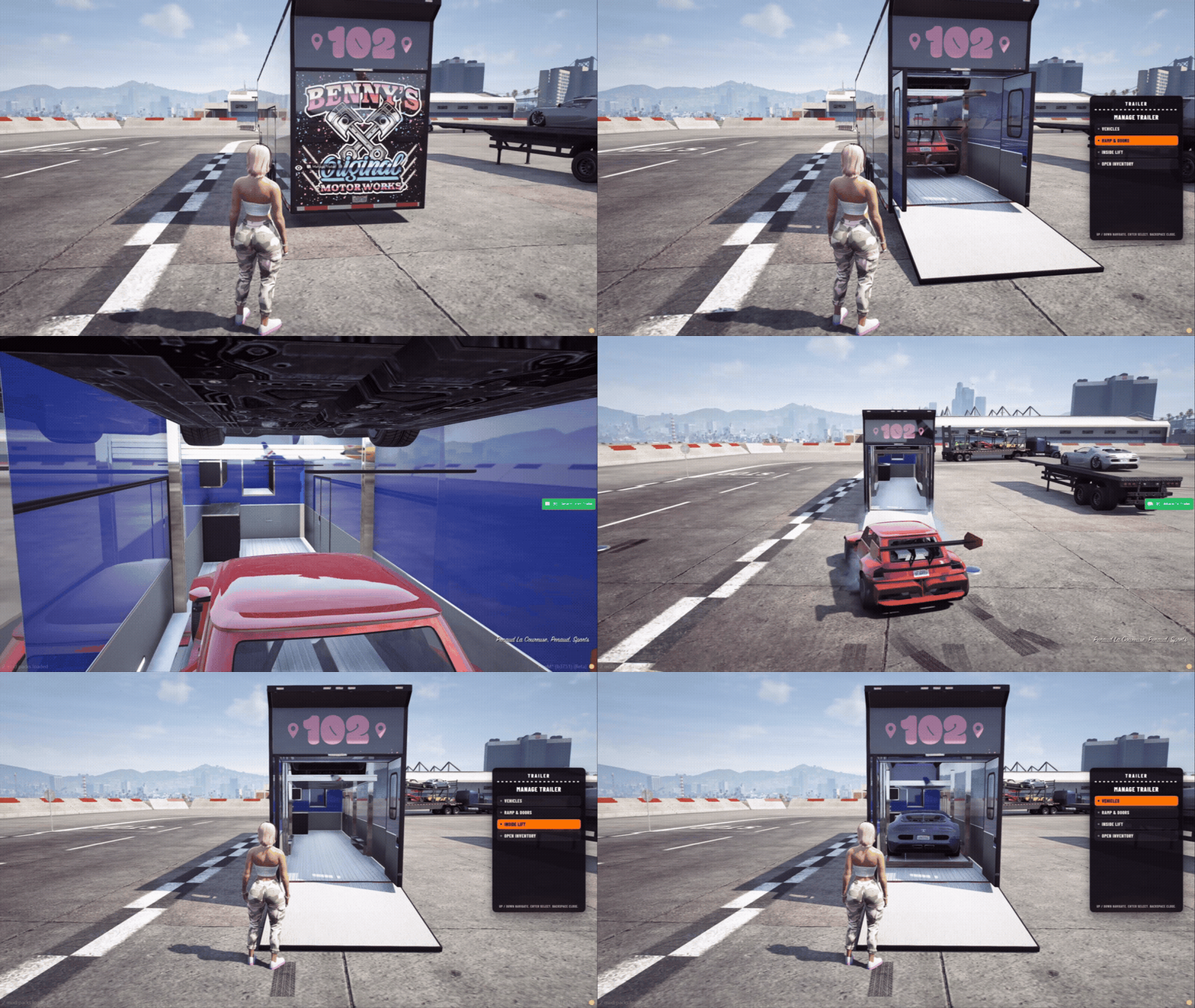
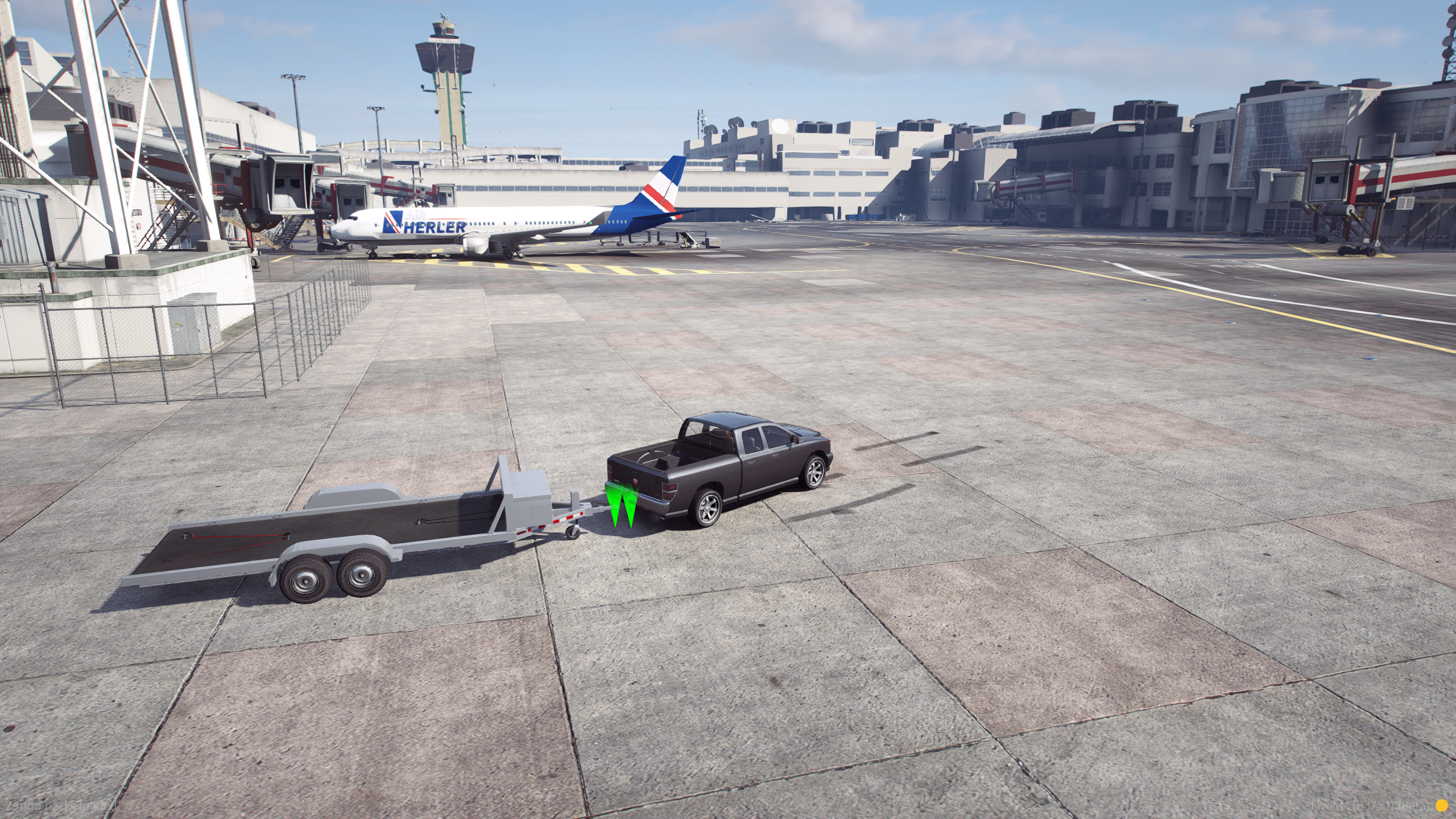
Config.AllowConnectAny, press J (Config.ConnectKeybind) when the helpers turn green. - Open Manage Trailer from third-eye, or from the TextUI / help prompt if targeting is off.
- Use the UI (or ox_lib menu) to open ramps, list loaded vehicles, or open cargo.
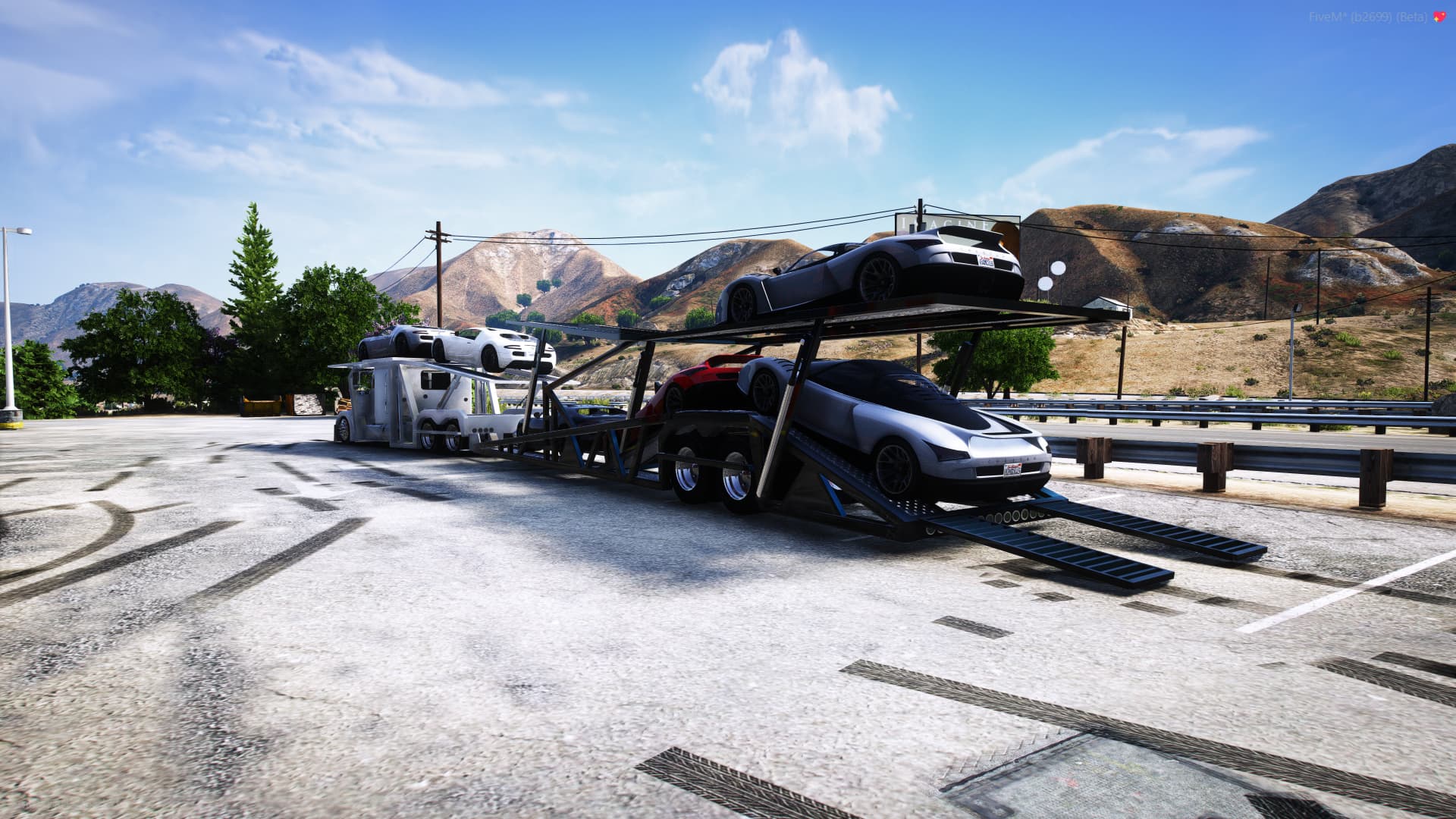
- Drive onto a car trailer and press E (
Config.AttachKeybind) to lock the vehicle on. Boats and static trailers use the same key at the load point. - Detach from the UI, or press E again while sitting in the loaded vehicle.
UI
Config.CustomUI = true (default) opens a custom UI instead of ox_lib context menus. Set the on-screen position with Config.CustomUIPosition (right, top-right, left, and the other TextUI-style names).
- Up / Down: move the highlight
- Enter: select
- Backspace: go back (or close on the main page)
The UI lists ramps, loaded vehicles (Enter puts you in the vehicle if HasOwnership returns true), cargo, and detach. Set Config.CustomUI = false to keep ox_lib menus.
Hitching
Config.AllowConnectAny = true
Config.ConnectMessage = false
Config.ConnectDistance = 4.0
Config.ConnectKeybind = "J"
Keep AllowConnectAny on so addon trucks can hitch as long as the hitch bones exist. Double / b-train hitches use a shorter connect distance (0.6) because of how Rage handles a second trailer. Those links also need the connecting models listed in the vehicle metas.
Hitch helpers on the truck and trailer bones turn from red to green when you can connect. Turn them on or off, and change their size, with Config.AttachHelpers.
Ramps, doors, extras
Each trailer can define one or more ramp entries. The UI / target menu opens and closes those doors, extras, or both. wait is a delay after open or close (useful for lifts). extrasHealth runs a small repair when an extra will not show until the trailer is repaired. onAttachedExtras turn on after a vehicle is attached.
Cars, boats, static
- Cars / haulers: drive onto the deck and attach. The vehicle is locked in place, engine off, doors locked (
VehicleAttachedOnTrailerinclient/edit.lua). - Boats: set
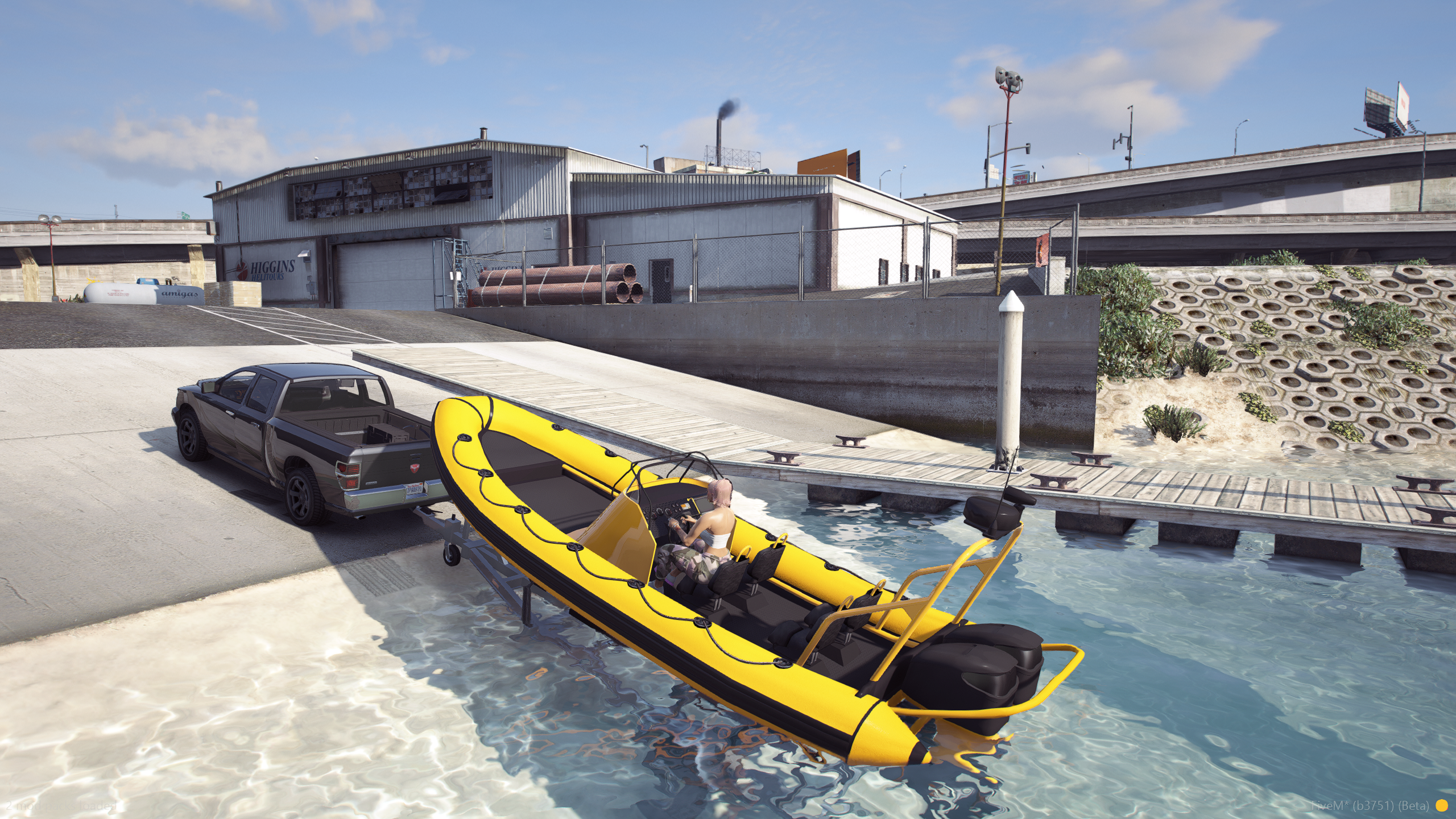
isBoat = true. Attach from nearby usingConfig.AttachDistanceand an optional per-traileroffsetvec3. - Static: no ramp, or a deck that is hard to reach. Stand on the load marker, attach, and the vehicle snaps to the next free
bedslot. Capacity is the number ofbedentries. Place these with/traileroffset.
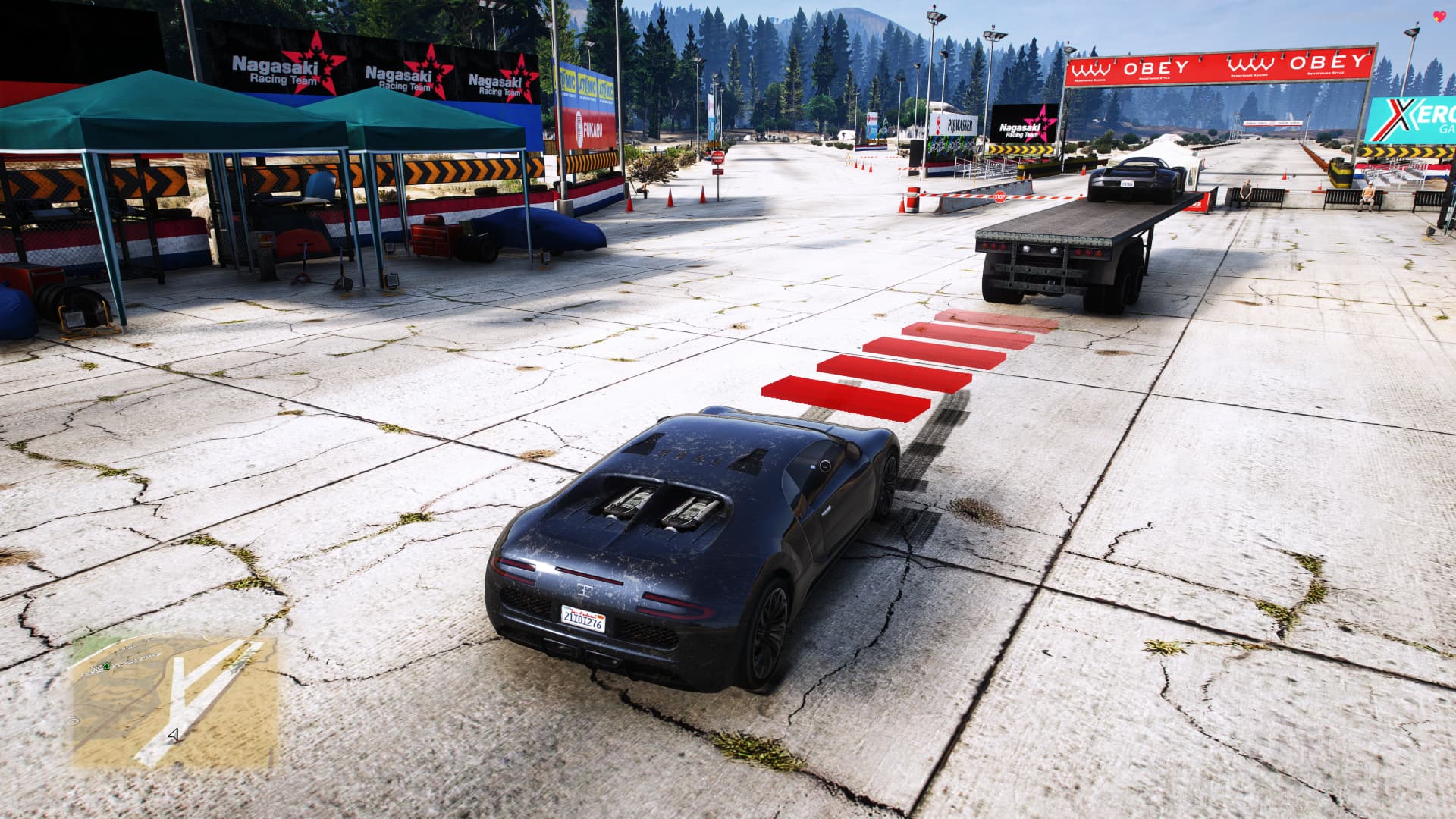
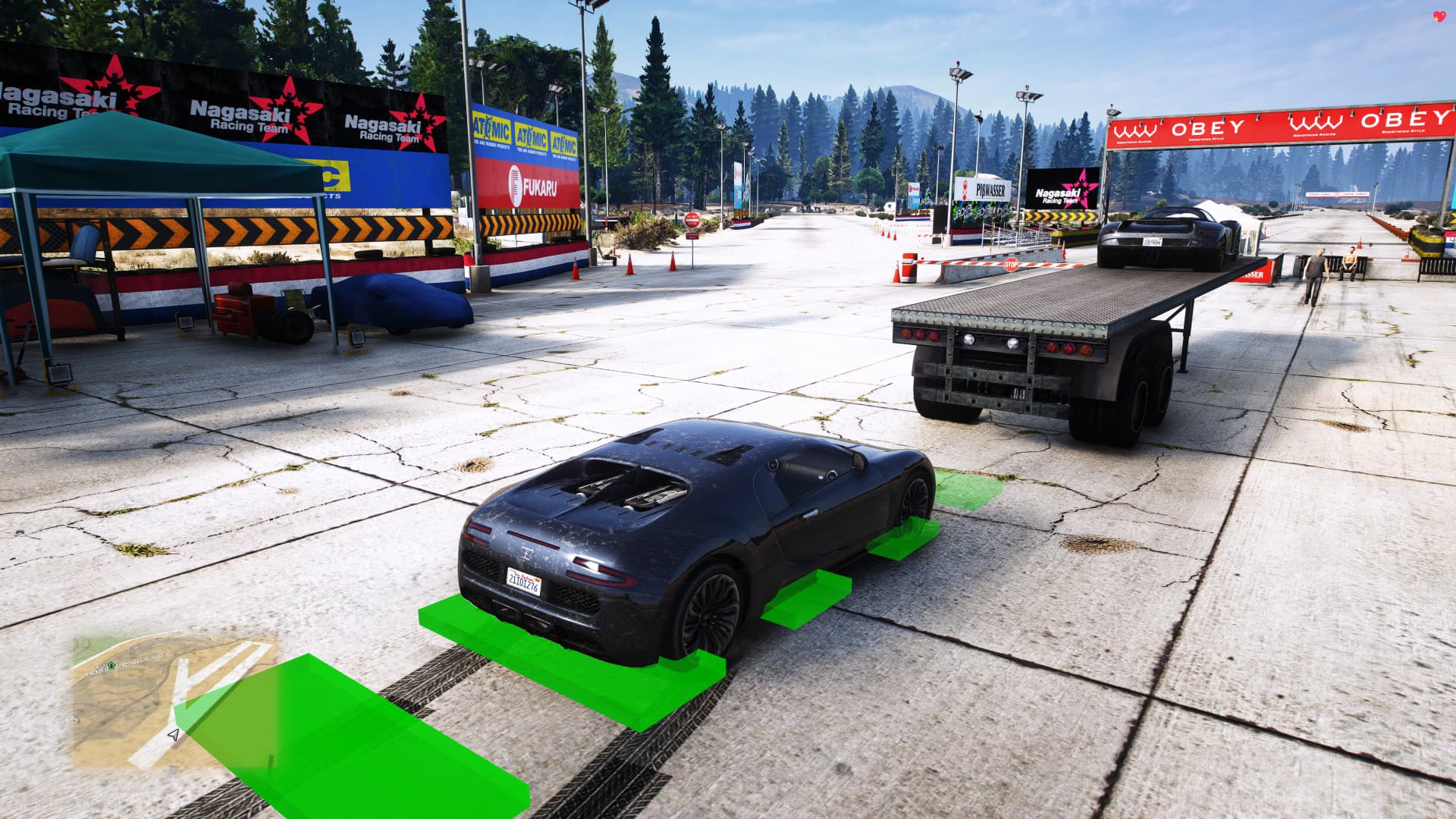
Config.StaticHelper draws the load marker. You can disable it or change its size there.
Dolly and b-train
isDolly = true keeps the dolly facing the right way until it hitches to another trailer.
Config.BTrain = {
    Enable = true,
    Limit = 6,
    AllowInvisible = true,
    Attempts = 3,
}
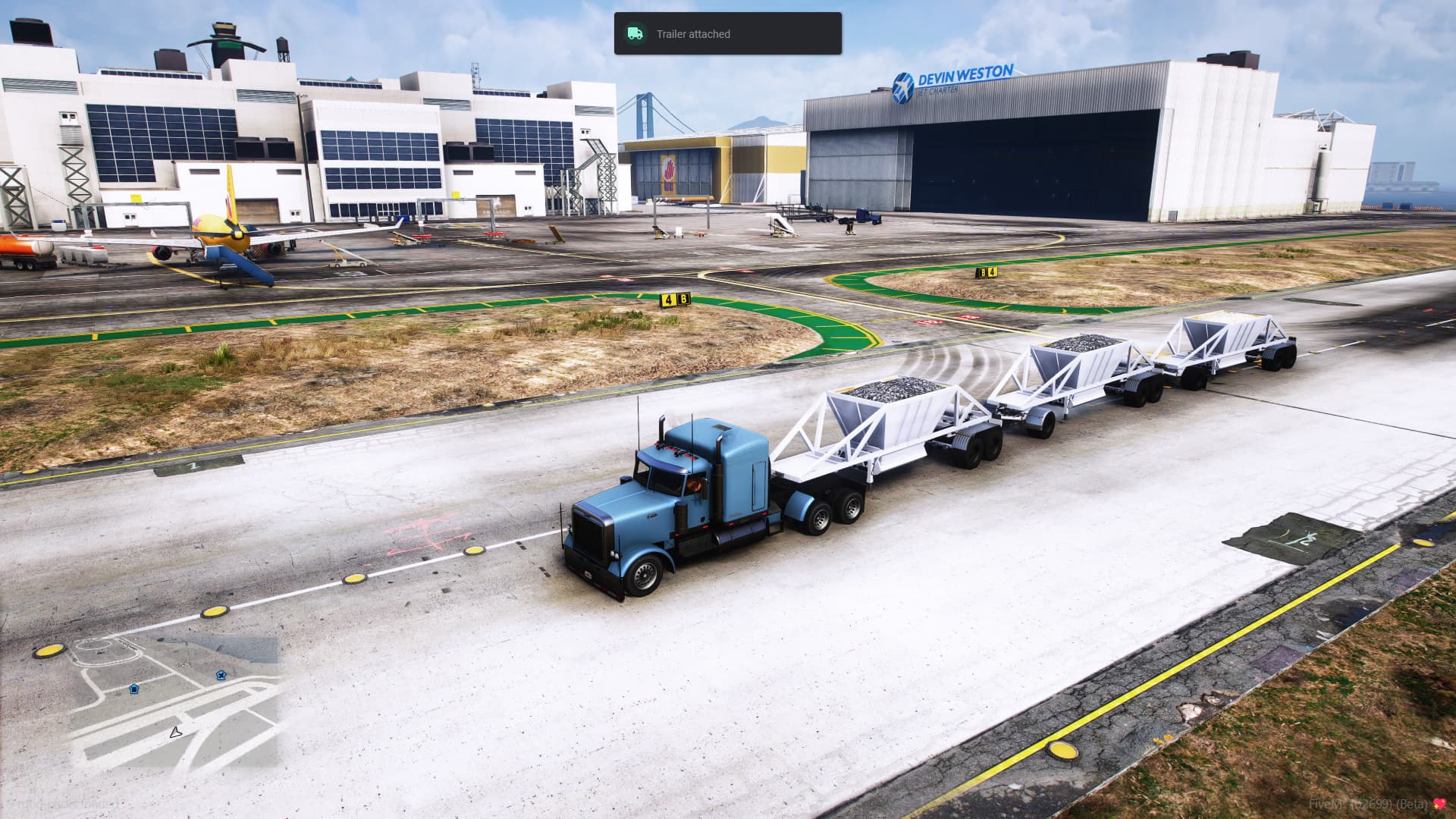
B-train chaining is optional. A higher Limit makes reversing harder. AllowInvisible hides the player while the link is attempted (recommended). Attempts is how many auto-retries run if the hitch is close but not quite aligned. Helpers make this much easier.
Cargo stash
If Config.Inventory.Enable is true and a supported inventory is started, Open Inventory appears on the UI / target menu. Stash size defaults to Config.Inventory.Default. Override it per trailer with inventory = { slots, weight }, or set inventory = false to hide it (dollies do this).
Details: Integrations.
Blacklist and whitelist
Config.TrailerBlacklist skips rollback / flatbed models so a tow script can own those beds. The bundled list already includes common tow and rollback hashes.
Config.ForcedWhitelist = true means only models in Config.Trailers work. Leave it false unless you want every other trailer ignored.